 Phil Leggetter
Track AI Agent Traffic to Your Docs with Vercel Log Drains, Hookdeck, and PostHog
If you publish machine-readable documentation, such as .md files or llms.txt, AI agents are almost certainly consuming it. The problem is you have no idea how much, which pages, or which agents.
Traditional web analytics tools like Vercel Web Analytics or Google Analytics rely on client-side JavaScript. When a coding agent like Cursor, Windsurf, or Claude fetches your /docs/transformations.md file directly, there's no browser, no DOM, and no JavaScript execution. The request comes and goes, and your analytics dashboard shows nothing.
This guide walks through building a server-side analytics pipeline using Vercel Log Drains, Hookdeck, and PostHog to capture every request to your machine-readable documentation. By the end, you'll have full visibility into which docs are being read, which AI agents are most active, and what paths they follow through your documentation.
What we're building
The architecture is straightforward:
- Vercel Log Drains stream server access logs as JSON webhooks whenever your site handles a request.
- Hookdeck receives the batched log events, filters for
.mdandllms.txtrequests, transforms the payload into PostHog's event format, and delivers it. - PostHog ingests the events for analysis, giving you breakdowns by path, user agent, region, and more.
Hookdeck sits in the middle doing the heavy lifting: filtering irrelevant logs out of the batch, reshaping the data, hashing visitor identifiers, and handling delivery with retries and observability. You could hit the PostHog API directly from Vercel, but then you'd need to build and host that transformation logic yourself.
Prerequisites
You'll need:
- A Vercel Pro or Enterprise plan (Log Drains aren't available on Hobby)
- A Hookdeck account (free tier works)
- A PostHog account (free tier works)
If you use the CLI to create the connection: install the Hookdeck CLI and run hookdeck login to authenticate with Hookdeck.
Step 1: Create the Hookdeck connection
Create a single connection that receives Vercel log drain webhooks (source) and forwards them to PostHog (destination). In Hookdeck you always create a connection as a whole—defining the source and destination in one flow—either in the Dashboard or via the CLI.
- Open the Connections page and click + Connection.
- Under Create new source: set Source Type to Vercel Log Drains and Source Name to
vercel-log-drains-website. - Under Create new destination: set Destination Type to HTTP, Name to
posthog-batch-api, and URL tohttps://us.i.posthog.com/batch(orhttps://eu.i.posthog.com/batchfor EU). - (Optional) Give the connection a name, e.g.
vercel-logs-to-posthog. - Click + Create.
After the connection is created, copy the Source URL from the connection (you'll need it for the Vercel Log Drain in Step 2).
Run the following (use https://eu.i.posthog.com/batch if your PostHog project is in the EU):
hookdeck gateway connection create \
  --name "vercel-logs-to-posthog" \
  --source-type VERCEL_LOG_DRAINS --source-name "vercel-log-drains-website" \
  --destination-type HTTP --destination-name "posthog-batch-api" \
  --destination-url "https://us.i.posthog.com/batch"
The command creates the connection, source, and destination in one go. The output includes the Source URL—copy it for the Vercel Log Drain configuration in Step 2. You can also find it later on the Connections page.
Step 2: Configure the Vercel Log Drain
In your Vercel Dashboard (under Team Settings > Drains):
- Go to Team Settings > Drains and click Add Drain.
- Select Logs as the data type.
- Choose Custom as the drain type.
- Set the Endpoint URL to your Hookdeck Source URL.
- Set the Delivery Format to JSON.
- Under Sources, make sure Static is checked (
.mdfiles are typically served as static assets). - Optionally filter by Environment to only capture production traffic.
- Under Projects, select the relevant project(s).
Save the drain. Vercel will verify the endpoint and start streaming logs.
About path filtering
Vercel Log Drains support path prefix filtering (e.g., /docs/), but they don't support suffix or glob patterns, so you can't filter for *.md at the drain level. Hookdeck handles that using a filter (to drop batches with no doc requests) and a transformation (to filter within each batch and reshape payloads for PostHog)—you'll add both in the next step.
If your .md files all live under a known prefix like /docs/, adding that prefix at the Vercel level will reduce the volume of logs Hookdeck receives. Otherwise, leave the path filter empty.
Step 3: Add a filter, then the transformation
Configure two connection rules in order: first a Filter rule so only batches that contain .md or llms.txt requests are processed, then a Transform rule that converts the payload to PostHog's batch format. Rule order matters—see How to Order Transformations & Filters and the filter syntax documentation.
Understanding the Vercel log payload
Vercel sends batched JSON arrays of log objects. Here's an example batch with one static file request:
[
  {
    "id": "1771354142681166479381956964",
    "timestamp": 1771354142681,
    "requestId": "5ztrh-1771354142669-7b03f3ad3eda",
    "executionRegion": "gru1",
    "level": "info",
    "proxy": {
      "host": "hookdeck.com",
      "method": "GET",
      "cacheId": "-",
      "statusCode": 200,
      "path": "/webhooks/platforms/guide-to-wordpress-com-webhooks-features-and-best-practices.md",
      "clientIp": "191.235.66.21",
      "vercelId": "5ztrh-1771354142669-7b03f3ad3eda",
      "region": "gru1",
      "userAgent": [
        "Mozilla/5.0 AppleWebKit/537.36 (KHTML, like Gecko); compatible; ChatGPT-User/1.0; +https://openai.com/bot"
      ],
      "timestamp": 1771354142669,
      "scheme": "https",
      "vercelCache": "HIT",
      "pathType": "STATIC"
    },
    "projectId": "prj_SE2YApqoIe6idkgjNuOobQHKRsRm",
    "projectName": "website",
    "deploymentId": "dpl_7vaVwtk6ZDNBiU8awRqpistAFoWR",
    "source": "static",
    "host": "hookdeck.com",
    "path": "webhooks/platforms/guide-to-wordpress-com-webhooks-features-and-best-practices",
    "environment": "production",
    "branch": "main",
    "ja4Digest": "t13d1712h2_5b57614c22b0_ef7df7f74e48"
  }
]
A few things worth noting:
- The body is an array of log entries; the Filter and transformation both operate on this array.
userAgentis an array, not a string. Vercel normalizes all header values as arrays. In practice, there's always one element.- Top-level vs
proxy: Each log entry has top-level fields (e.g.path,host,requestId,projectName,deploymentId,branch,environment,level,ja4Digest,source,executionRegion) that describe the log and deployment context. Theproxyobject holds request-specific details: HTTP details (method, statusCode, scheme), client identity (clientIp, userAgent), request path with leading slash, request timestamp, and Vercel cache/region info. The transformation uses top-level properties where they exist and reads fromproxyonly when the value lives there (e.g.userAgent,clientIp,referer, requesttimestamp). path(top-level) is the request path without a leading slash;proxy.pathis the same with a leading slash. Use top-levelpathin the filter and for consistency in the transformation when building URLs (e.g.https://${log.host}/${log.path}).
3a. Add a Filter rule (Body)
Add a Filter rule to the connection. In the Body tab, use a filter that allows events where at least one log entry in the batch has a path ending in .md or llms.txt. Use the top-level path property on each log entry:
{
  "$or": [
    { "path": { "$endsWith": ".md" } },
    { "path": { "$endsWith": "llms.txt" } }
  ]
}
When the body is an array of log objects, the filter allows the event through if any element matches one of the conditions—batches with no doc requests are dropped and never reach the transformation or PostHog. For how Body filters apply to JSON array payloads (including batched logs), see the Filters documentation and filter syntax.
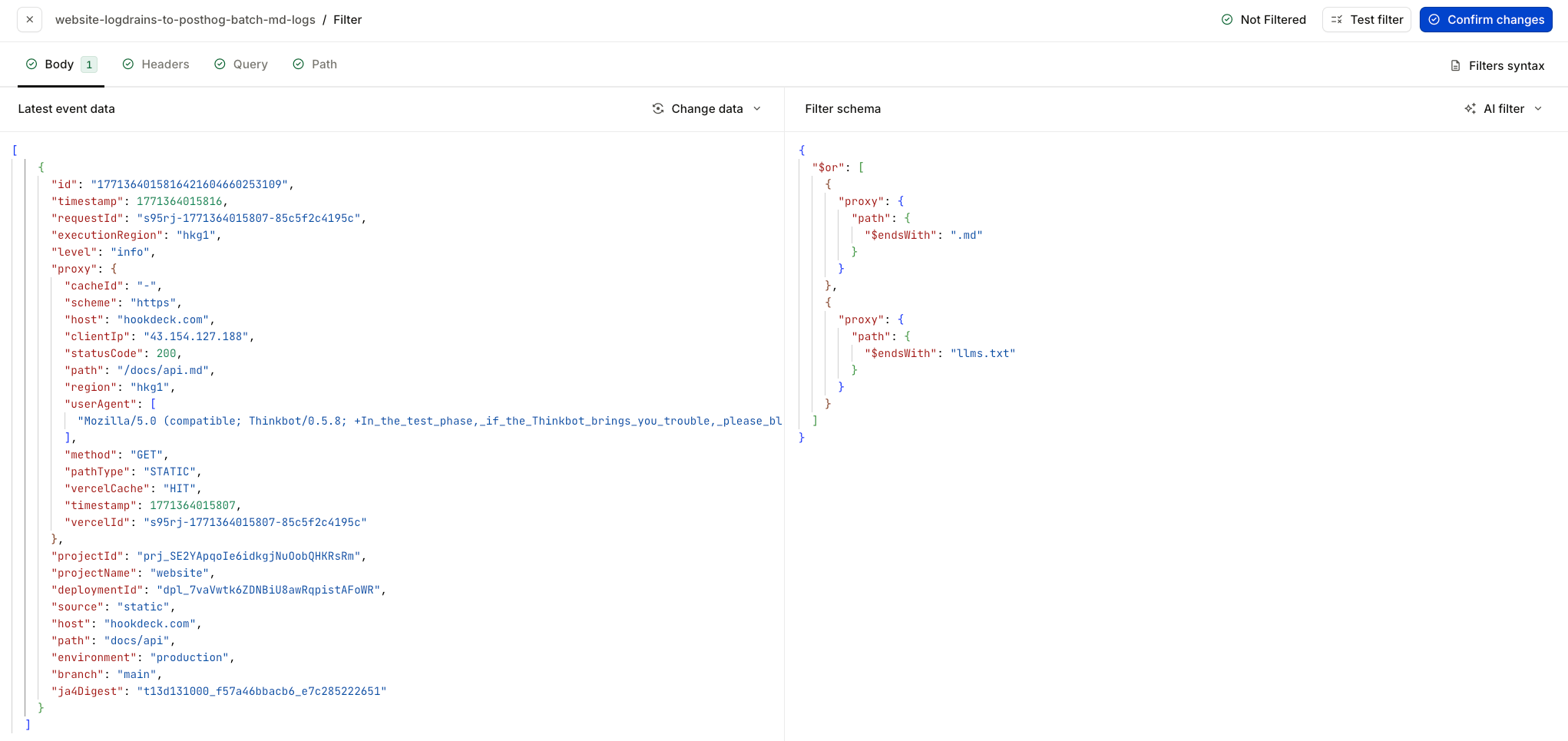
In the filter editor, the Body tab shows your filter schema on the right and the latest event data on the left so you can test the filter against real payloads (e.g. a log entry with path ending in docs/api.md). The screenshot below shows the current filter UI with the JSON schema using $or and $endsWith.
3b. Add the Transform rule
In the Hookdeck Dashboard, open your connection and add a Transform rule (after the filter). In the transformation editor, add an environment variable so the transformation can send events to PostHog:
- Key:
POSTHOG_API_KEY - Value: Your PostHog project API key (found in PostHog under Project Settings)
Then add the transformation logic. The transformation needs to:
- Filter the batch to only
.mdandllms.txtentries (a batch can mix doc requests with other traffic) - Generate a consistent anonymous identifier for each remaining log
- Reshape each log entry into a PostHog event and wrap everything in the PostHog batch API format
The transformation code
Paste the following into the transformation editor (copy grabs the full code; use Show More to expand):
addHandler("transform", (request, context) => {
  const logs = request.body;

  // Simple consistent hash (djb2) for generating anonymous distinct IDs.
  // Hookdeck's V8 isolate doesn't support Node.js crypto,
  // but we don't need cryptographic strength here.
  function hash(str) {
    let h = 5381;
    for (let i = 0; i < str.length; i++) {
      h = ((h << 5) + h + str.charCodeAt(i)) & 0xffffffff;
    }
    return "anon_" + (h >>> 0).toString(16);
  }

  // A batch can mix .md/llms.txt with other requests (.html, .css, etc.). The Filter
  // only lets through batches that contain at least one doc request; we still need to
  // send only doc views to PostHog.
  const targetLogs = logs.filter((log) => {
    const p = log.path || log.proxy?.path || "";
    return p.endsWith(".md") || p.endsWith("llms.txt");
  });

  // Extract the client's self-identified name for ua_product. Many bots send "Mozilla/5.0 ...
  // (compatible; BotName/Version; ...)" so we look for that pattern first; otherwise use the
  // first product token (e.g. "axios" from "axios/1.12.0"). This lets you discover unknown bots.
  function firstUaProduct(ua) {
    if (!ua || typeof ua !== "string") return "Other";
    const compatibleMatch = ua.match(/compatible;\s*([^/;\s]+)(?:\/[^\s;]*)?/i);
    if (compatibleMatch) return compatibleMatch[1].trim();
    const first = ua.trim().split("/")[0].trim().split(/\s+/)[0].trim();
    return first || "Other";
  }

  // Optional: normalize known agents to short labels for dashboards. Unknown clients stay
  // as their ua_product value; use bot_name only if you want a short list.
  function parseBotName(ua) {
    if (!ua || typeof ua !== "string") return "Other";
    const s = ua.toLowerCase();
    if (s.includes("chatgpt-user") || s.includes("openai")) return "ChatGPT";
    if (s.includes("claudebot") || s.includes("claude-user") || s.includes("anthropic")) return "Claude";
    if (s.includes("ccbot")) return "Common Crawl";
    if (s.includes("google-extended") || s.includes("googlebot")) return "Google";
    if (s.includes("bingbot")) return "Bing";
    if (s.includes("bytespider")) return "Bytespider";
    if (s.includes("amazonbot")) return "Amazon";
    if (s.includes("petalbot")) return "PetalBot";
    if (s.includes("perplexitybot")) return "Perplexity";
    if (s.includes("cohere")) return "Cohere";
    if (s.includes("cursor")) return "Cursor";
    if (s.includes("windsurf")) return "Windsurf";
    if (s.includes("mozilla") || s.includes("chrome") || s.includes("safari") || s.includes("firefox")) return "Browser";
    return "Other";
  }

  const batch = targetLogs.map((log) => {
    // Only proxy has userAgent and clientIp; use top-level for the rest where present
    const ua = Array.isArray(log.proxy?.userAgent)
      ? log.proxy.userAgent[0]
      : log.proxy?.userAgent || "";
    const raw = `${log.proxy?.clientIp || ""}:${ua}:${log.ja4Digest || ""}`;
    const distinctId = hash(raw);
    // Request timestamp is in proxy; path and host prefer top-level (path has no leading slash there)
    const path = log.path ?? log.proxy?.path ?? "";
    const pathWithSlash = path.startsWith("/") ? path : `/${path}`;
    const host = log.host ?? log.proxy?.host ?? "";
    const requestTime = log.proxy?.timestamp ?? log.timestamp;

    return {
      event: "doc_view",
      distinct_id: distinctId,
      timestamp: new Date(requestTime).toISOString(),
      properties: {
        $process_person_profile: false,
        $current_url: host ? `https://${host}${pathWithSlash}` : null,
        path: pathWithSlash,
        user_agent: ua,
        ua_product: firstUaProduct(ua),
        bot_name: parseBotName(ua),
        referer: log.proxy?.referer ?? null,
        client_ip: log.proxy?.clientIp ?? null,
        region: log.proxy?.region ?? null,
        execution_region: log.executionRegion ?? null,
        cache_status: log.proxy?.vercelCache ?? null,
        http_method: log.proxy?.method ?? null,
        status_code: log.proxy?.statusCode ?? null,
        path_type: log.proxy?.pathType ?? null,
        scheme: log.proxy?.scheme ?? null,
        source: log.source ?? null,
        project_name: log.projectName ?? null,
      },
    };
  });

  request.body = {
    api_key: process.env.POSTHOG_API_KEY,
    batch,
  };

  return request;
});
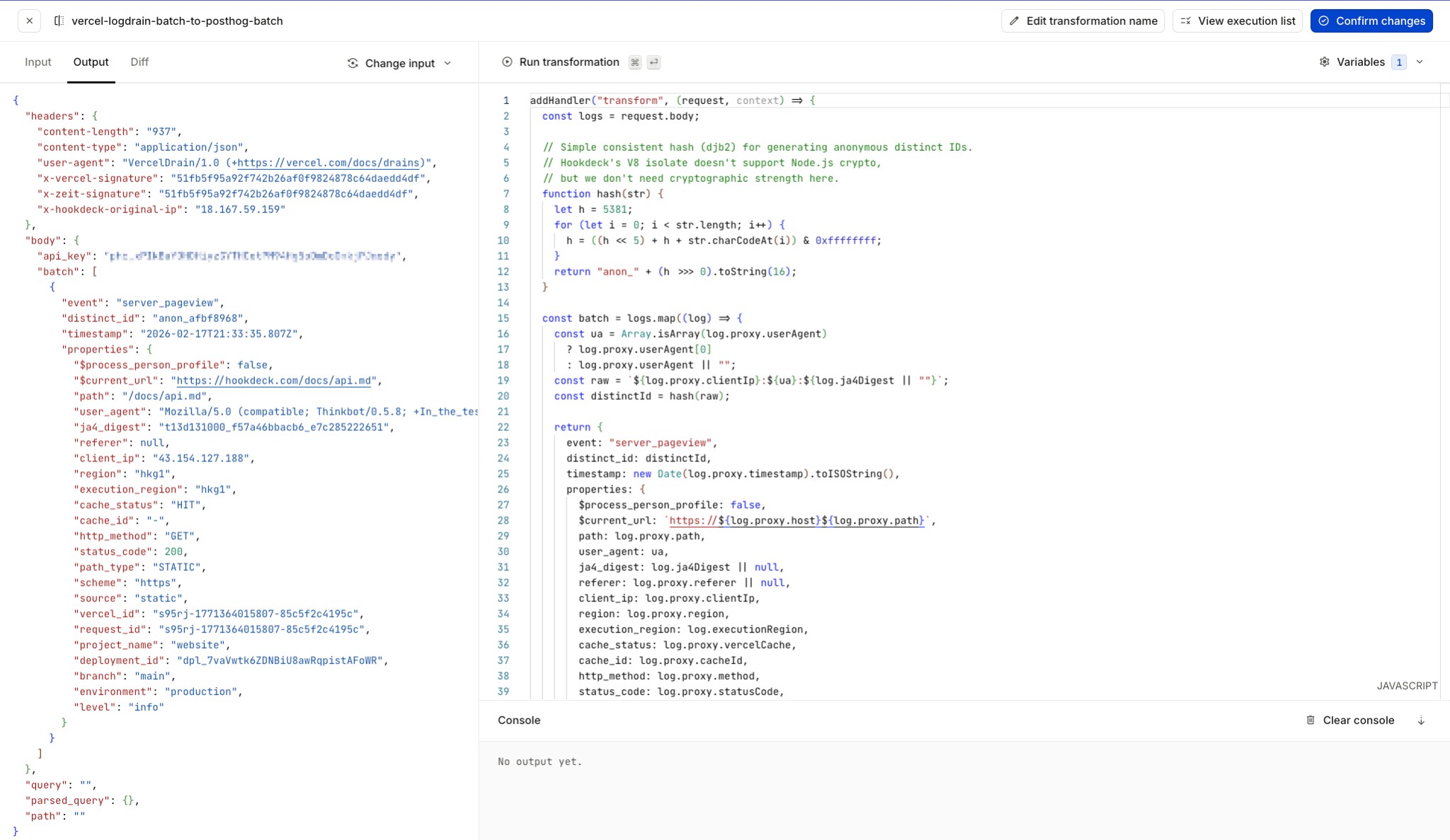
In the transformation editor you can run the transformation against sample input: the Input pane shows the incoming Vercel log drain payload, and Output (or Diff) shows the result in PostHog batch API format. The screenshot below shows the current transformation editor with the Input panel, transformation code, and run/confirm controls.
The Filter rule (step 3a) runs first and allows only batches that contain at least one request to a .md file or llms.txt (see filter syntax). That reduces how often the transformation runs—batches with no doc requests are dropped. But a batch can still mix doc requests with other traffic (e.g. .html, .css, video assets), so the transformation must loop through the log entries, keep only .md and llms.txt requests, and then convert those to PostHog's event format. The filter cuts work; the transformation does the per-entry filtering and reshaping.
Anonymous visitor identity
PostHog requires a distinct_id on every event. We hash three signals so the same agent from the same IP gets a stable ID (good for path analysis; approximate when many clients share NAT):
- Client IP: Network origin
- User Agent: Client software
- JA4 Digest: TLS fingerprint (cipher suites, extensions)
We use djb2 (Hookdeck's V8 isolate has no Node crypto) and set $process_ so PostHog doesn't create person records—event and path analytics still work.
Choosing an event name
The transformation uses doc_view rather than PostHog's built-in $pageview so server-side .md traffic doesn't mix into existing client-side dashboards and Web Analytics. A custom event keeps the data separated; you can still build Trends and Paths insights on doc_view the same way. If you have no client-side PostHog yet, $pageview is fine—just revisit if you add it later. If your machine-readable content lives beyond docs (e.g. platform guides, blog), consider server_pageview instead of doc_view; swap the event name in the code if that fits.
Parsing the user agent and selecting properties
We derive ua_product and bot_name from the user agent so you can see who's reading your docs without maintaining an allowlist. Many bots send Mozilla/5.0 ... (compatible; BotName/Version; ...); we parse that compatible; ... segment first so you get PetalBot, ChatGPT-User, bingbot, etc., instead of "Mozilla". Otherwise we use the first product token (e.g. axios/1.12.0 → axios). ua_product is the one to use in PostHog breakdowns—unknown bots show up by the name they send. bot_name is an optional normalized label (ChatGPT, Claude, Browser, Other) for compact dashboards; extend parseBotName as you add agents.
We omit deployment, branch, environment, request_id, cache_id, and ja4_digest to keep the payload small. We still use ja4Digest in the distinct_id hash; we just don't store it. If you need to filter by deployment or environment later, add those properties back to the transformation.
Step 4: The complete connection
Once you've added the Filter rule and the Transform rule (and optionally a Deduplicate rule before the filter to collapse duplicate batches), your Hookdeck connection should look like this (Filter and Transform sections use the current UI and filter syntax):
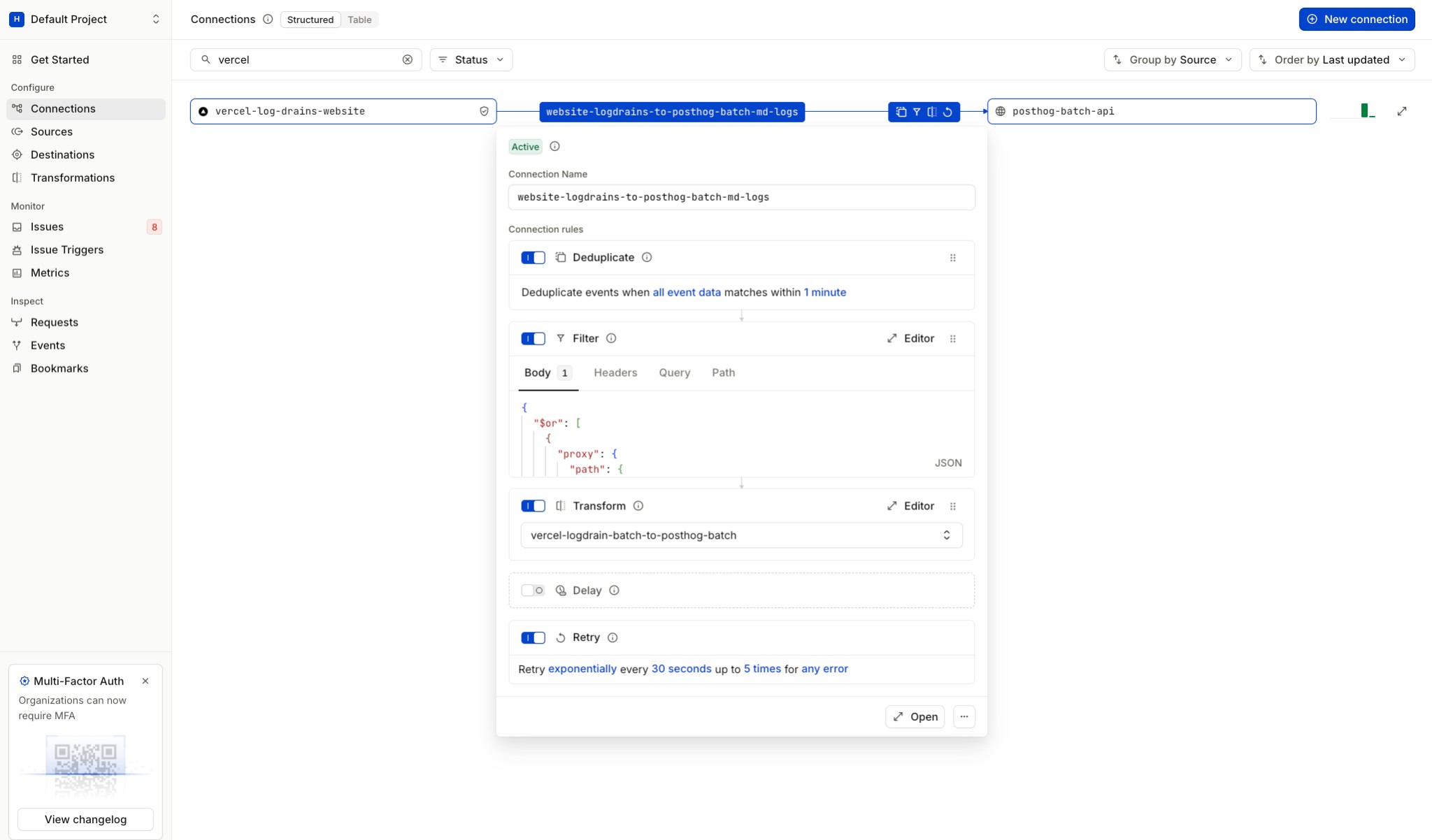
The connection rules execute in order: the filter allows only batches that contain at least one .md or llms.txt request, then the transformation reshapes the payload into PostHog's batch format.
Step 5: Test the pipeline
Here's the fun part. Ask your AI coding agent to generate some test traffic. Fetch the following:
Fetch the following .md resources and tell me what each one covers:

- https://your-site.com/docs/llms.txt
- https://your-site.com/docs/transformations.md
- https://your-site.com/docs/connections.md
- https://your-site.com/docs/sources.md
- https://your-site.com/docs/filters.md
Your agent will fetch each URL, and those requests will flow through the Vercel Log Drain into Hookdeck and on to PostHog. It's a satisfying way to validate the pipeline because you'll immediately see user agents from real agents showing up in your data, not simulated ones. You can also hit a few .md URLs with curl and a custom User-Agent if you prefer.
Within a few seconds, you should see:
- In Hookdeck: The batched log event arriving on your source, the transformation execution logs (check the Input/Output/Diff tabs to verify filtering and reshaping), and the successful delivery to PostHog.
- In PostHog: New
doc_viewevents appearing in the Activity tab with all your custom properties.
If no events reach PostHog, confirm the batch includes at least one .md or llms.txt request and check Hookdeck's Input/Output for the filter and transformation.
Analyzing the data in PostHog
It's worth being clear about what this data represents. We're tracking requests to .md files and llms.txt, not all traffic to your site. This means you're looking at a specific slice: the machine-readable documentation layer.
Some of these requests will be from AI agents fetching context. Others will be from developers who navigate directly to a .md URL in their browser, or from tools like curl or wget. The user_agent property is what lets you tell them apart. Browser requests will have standard user agents like Mozilla/5.0 (Macintosh; ...), while AI agents typically self-identify with strings like ChatGPT-User/1.0, ClaudeBot, or CCBot/2.0.
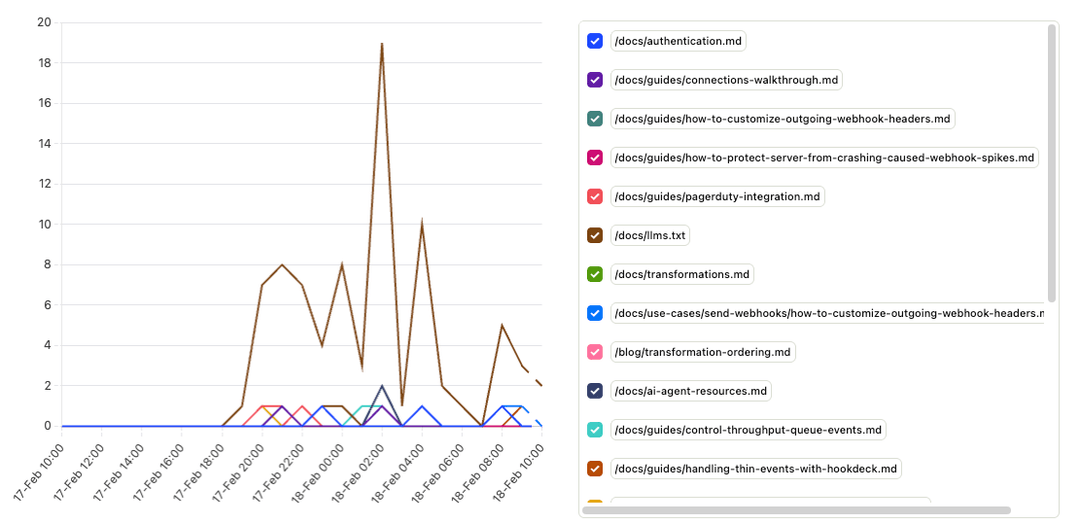
Pageviews by client (ua_product)
This is the first insight to create. Set up a Trends insight in PostHog with doc_view events broken down by the ua_product property. Because we extract the first product token from the user agent generically (no allowlist), you see every client by the name they send: known agents like ChatGPT-User or ClaudeBot, browsers like Mozilla, and unknown or new bots as soon as they hit your docs. That makes ua_product the right property for discovery and for answering "who's reading our docs?" without maintaining a list.
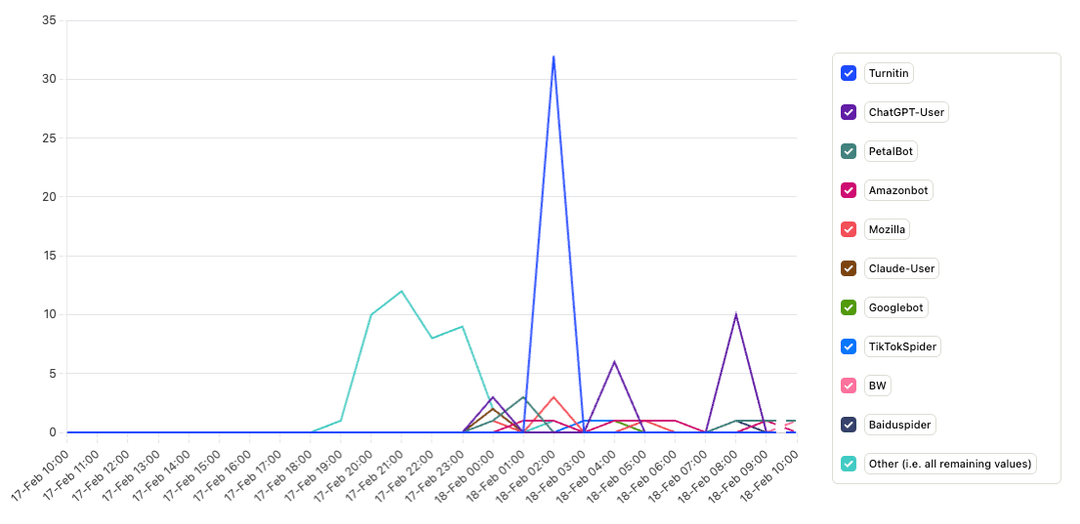
If you prefer a compact view with only a few labels (e.g. ChatGPT, Claude, Browser, Other), break down by bot_name instead. For drill-down or regex-based cohorts, use the full user_agent property.
Most-read documentation pages
A doc_view count broken down by path shows which docs get the most attention. This is useful for prioritizing documentation investment. If agents disproportionately read your API reference but rarely touch your getting-started guide, that tells you something about how AI tools navigate your docs, and where to invest in better machine-readable content.
Entry and exit pages per agent (SQL)
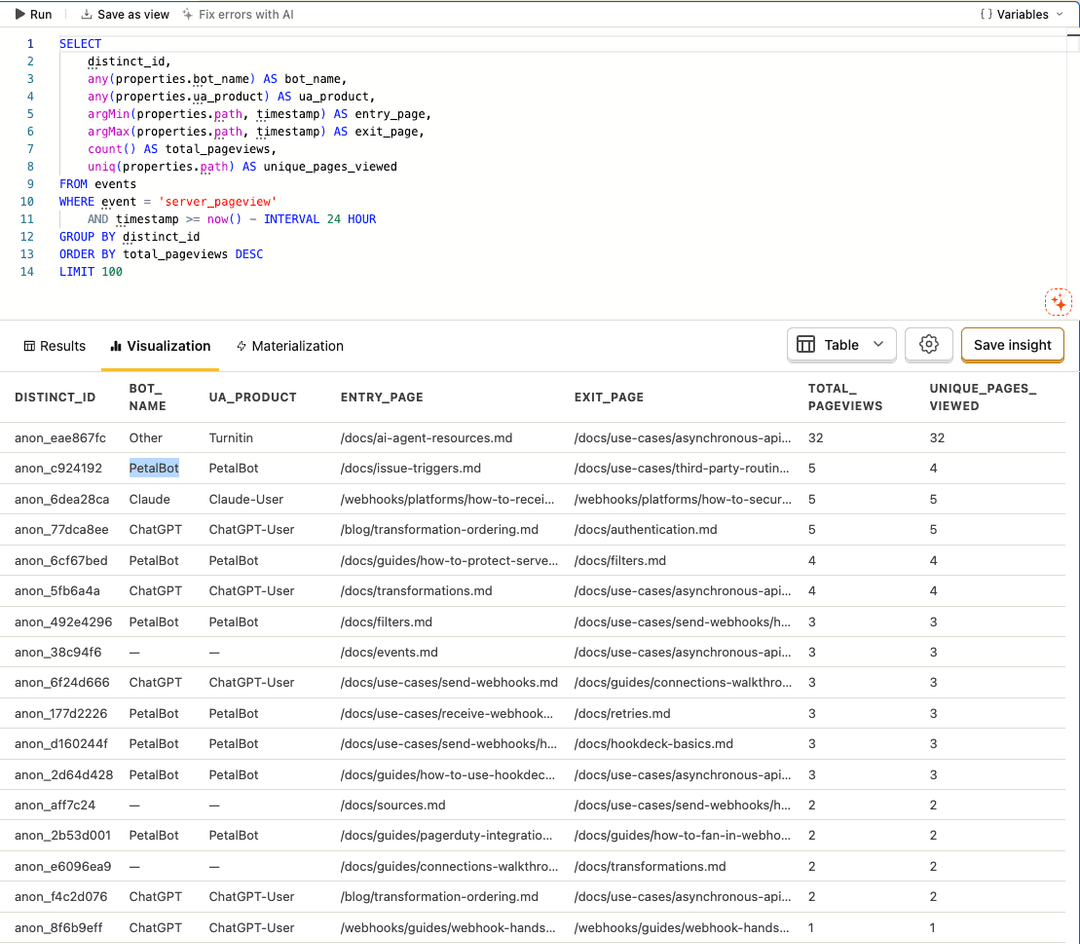
PostHog's built-in User Paths insight only works with $pageview (or paths that include pageviews). Because we're sending a custom event like doc_view or server_pageview, we can't use that visualization directly. You can get the same kind of journey signal with a SQL insight: group by distinct_id, and use argMin(properties.path, timestamp) for the first page and argMax(properties.path, timestamp) for the last. Add count(*) for total pageviews and uniq(properties.path) for unique pages viewed. That gives you entry page, exit page, and engagement per anonymous session—so you can see whether agents start at llms.txt and fan out, or land on a specific doc and move elsewhere.
Going further: tracking all site traffic
The pipeline we've built here is scoped to .md and llms.txt files. But the same architecture works for tracking all Vercel traffic through PostHog. Remove the file extension filter in the transformation and pipe every request through, and you get a complete server-side analytics picture alongside your client-side tracking. That would let you see the true ratio of agent-to-human requests across your entire site and identify which non-documentation pages agents are hitting.
The trade-off is volume: significantly more events flowing to PostHog, which affects your billing. The scoped approach we've used here keeps costs low while giving you visibility into the traffic that's currently invisible to traditional analytics.
Limitations and trade-offs
A few things to keep in mind:
- Vercel Log Drains are real-time only—no backfill—and are a paid feature (Pro plan, $0.50/GB exported).
- The anonymous identity is approximate, useful for directional journey analysis rather than precise unique counts.
- Hookdeck transformations have a 1-second execution limit; typical Vercel log batches are well under that.
Let your agent build it
This post is a .md file your AI coding agent can use as implementation instructions. The Hookdeck agent skill gives your agent the context to create and configure the connection via the CLI; the only manual step is creating the Vercel Log Drain in the Vercel dashboard.
Install the skill (one-time):
npx skills add hookdeck/agent-skills --skill event-gatewayPoint your agent at this post and use a prompt like:
Follow the steps within this tutorial:
https://hookdeck.com/webhooks/platforms/track-ai-agent-traffic-vercel-log-drains-hookdeck-posthog.md
You can then inspect every batch, transformation output, and delivery in Hookdeck's dashboard—and Hookdeck retries automatically if something fails.
