 Fikayo Adepoju Oreoluwa
How to Create Shopify Webhooks with the Shopify Admin API Tutorial
Shopify webhooks help build integrations with external applications that need to respond in real-time to events taking place in a Shopify store. You can create and manage Shopify webhooks using the Shopify admin dashboard. Although easy to use, the admin interface does not allow developers to perform automated tasks on their webhooks. Instead, users have to log into the admin interface and manually perform webhook-related tasks.
As a solution to this drawback, Shopify opened up its webhook API. This allows programmatic interaction with Shopify webhooks, thereby expanding the scope of what is possible with the technology.
In this article, I will walk you through how to set up authentication with the Shopify API, and then use the Shopify webhooks API to create and view your webhooks. You will also use a locally running API to receive and log your webhooks.
Let's get right into it!
Tutorial Prerequisites
To follow along with this tutorial, you will need a couple of things:
- A Shopify store
- The ability to create Shopify custom apps (you may not have this permission if you're not the direct owner of the store you're working with)
- Node.js installed on your system (if you already have a local API that you prefer to use, that is fine as long as you make sure it exposes a
POSTendpoint and listens on a known port) - Hookdeck CLI installed (you can find details on installing the tool here)
Creating a Shopify custom app
The first step to accessing and using the Shopify webhooks API is to create a custom app for your Shopify store. Custom apps are built to work exclusively for your store (unlike public apps listed on the Shopify App Store), and they give you direct access to your store's data through the Shopify API.
To learn more about the different types of Shopify apps, read the documentation here.
Enabling custom app development
Before you can create a custom app, you need to enable custom app development on your store. Navigate to Settings > Apps and sales channels > Develop apps in your Shopify admin. If custom app development is not yet enabled, click Allow custom app development and confirm. You must be the store owner or have the required collaborator permissions to enable this.
Creating the app and configuring API scopes
- On the Develop apps page, click Create an app.
- Enter a name for the app (in this example,
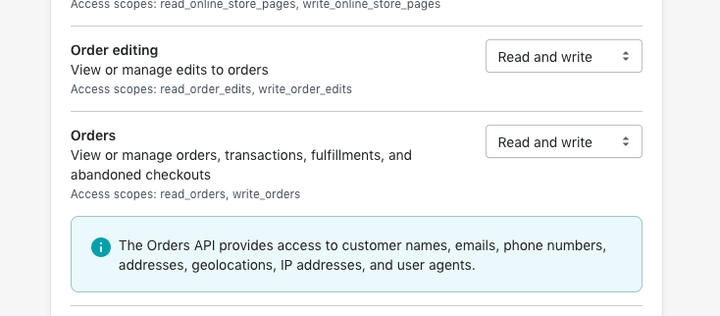
Purchase Log API) and click Create app. - On the app page, click Configure Admin API scopes to select the permissions your app needs. For this tutorial, enable
read_ordersandwrite_ordersscopes. - Click Save to confirm the scopes.
Installing the app and getting your credentials
Once the scopes are configured, click Install app and confirm the installation. After installation, Shopify generates the following credentials:
- Admin API access token — used to authenticate all API requests. This token is only shown once, so copy and store it securely immediately.
- API key (also called Client ID) — identifies your app.
- API secret key (also called Client secret) — used for HMAC webhook signature verification (more on this later).
Shopify releases new API versions quarterly (e.g.,
2026-01) and each version is supported for a minimum of 12 months. When a version becomes unsupported, Shopify automatically falls forward to the oldest supported stable version. TheX-Shopify-API-Versionheader on each webhook delivery indicates which API version was used to serialize the payload.
You cannot rotate API credentials for custom apps created in the Shopify admin. If credentials are compromised, you must delete the app and create a new one.
Authenticating with the Shopify API
Custom apps authenticate with the Shopify Admin API using the X-Shopify-Access-Token header. Include the Admin API access token you copied during installation with every request:
X-Shopify-Access-Token: {your_admin_api_access_token}
For example, to list webhooks on your store, you would send:
curl -X GET "https://{shop}.myshopify.com/admin/api/2026-01/webhooks.json" \
  -H "X-Shopify-Access-Token: {your_admin_api_access_token}"
shop: Your Shopify store subdomain string, e.g.hookdeck-store.
This is the authentication strategy we will be using for all API calls in this tutorial.
Now that you know how to authenticate with the Shopify API, let's start creating and receiving Shopify webhooks.
Setting up and receiving Shopify webhooks using the Shopify API
As described earlier, we will create a webhook using the Shopify API. Then, we'll spin up a local API to receive and log part of the webhook payload.
Before we begin, let's walk you through the steps necessary to achieve this webhook logging setup.
- Clone the demo API and run it locally
- Use the Hookdeck CLI to generate a webhook URL that points to the API endpoint
- Create a webhook using the API
- Test your webhook by triggering the subscription event
- Inspect your webhook and webhook logs
- Verify the webhook payload
Now that you're caught up, let's begin.
Clone the demo API
Clone the application repository for the API by running the following command:
git clone --single-branch --branch shopify-webhooks https://github.com/hookdeck/nodejs-webhook-server-example.git
Navigate to the root of the project and install the required dependencies by running the following commands:
cd nodejs-webhook-server-example
npm install
When the installation completes, you can then run the Node.js server with the following command:
npm start
This will boot up the API application and print a message to the screen indicating that the API is now running and listening for connections on port 1337.
We are using two endpoints in this project.
/log-shopify-webhook: This is the endpoint that will be receiving the Shopify webhook and logging it into an in-memory database. It logs a simple object containing a subset of the information from the webhook payload./fetch-webhooks-logs: This endpoint can be called to retrieve a collection of the logged webhook data.
Generate the webhook URL using the Hookdeck CLI
The next step is to use the CLI to generate a webhook URL that points to the running API application. To do this, run the following command (note: replace the port 1337 value with the port number on which your API is running if you're not using the sample project):
hookdeck listen 1337
This command starts an interactive session where the CLI collects information about the endpoint you're about to create. Below are the questions and the answers you should supply to each question. Ensure to hit the Enter key after each answer.
| Prompt | Answer |
|---|---|
| What source should you select? | Create new source (this prompt does not show up if you have not created any previous connections) |
| What should your new source label be? | Shopify |
| What path should the webhooks be forwarded to (i.e.: /webhooks)? | /log-shopify-webhook (if you're using your own custom server, replace this value with your endpoint) |
| What's the connection label (i.e.: My API)? | Purchase Log API |
With this information, the CLI will begin the process of generating the URL and once it's done, you will see the URL printed to the screen and the CLI indicating that it is ready to receive requests.
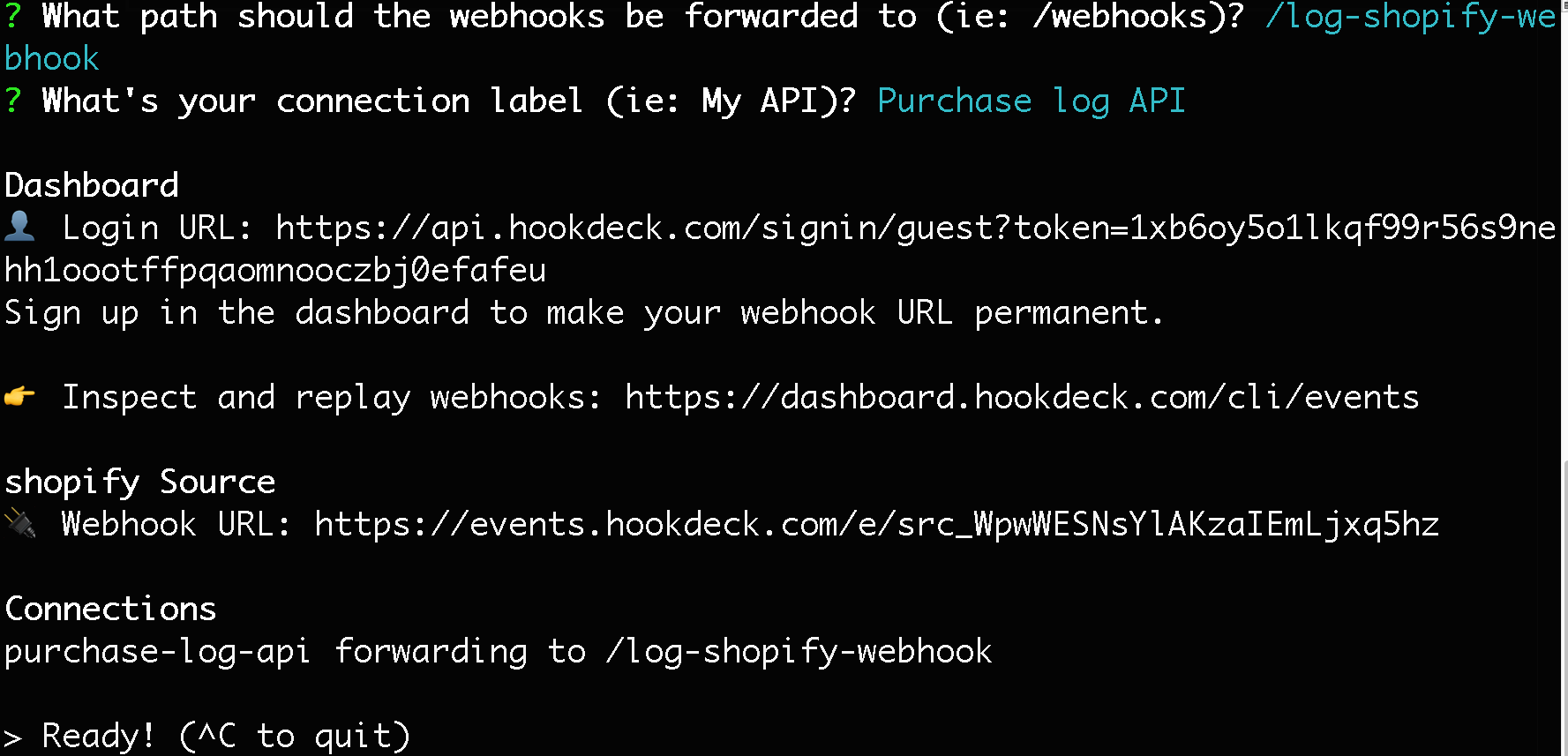
Note: If you're running the CLI in guest mode, you will need to use the guest Login URL link in the console to access the dashboard. Copy and paste this into your browser to begin a guest login session.
Create a Shopify webhook using the API
Now that you have your webhook URL, let's create the webhook. Shopify's webhook API can be accessed at https://{shop}.myshopify.com/admin/{version}/webhooks.json (remember to replace the values in {} with yours).
To create a webhook, you need to send a POST request to this endpoint. For the webhook you are creating in this tutorial, you must subscribe to the orders/create topic. This event is fired when a new order is created in your store.
Run the following curl command in your terminal to create the webhook. Replace {shop} with your store subdomain, {your_ with your Admin API access token, and {webhook_url} with the webhook URL generated on the Hookdeck CLI session:
curl -X POST "https://{shop}.myshopify.com/admin/api/2026-01/webhooks.json" \
  -H "X-Shopify-Access-Token: {your_admin_api_access_token}" \
  -H "Content-Type: application/json" \
  -d '{
    "webhook": {
      "topic": "orders/create",
      "address": "{webhook_url}",
      "format": "json"
    }
  }'
You should get back a successful JSON response containing the details of your newly created webhook, including its id, topic, address, and created_at timestamp. This indicates that you have successfully created a webhook for the orders/create topic on your Shopify store.
Shopify enforces a strict 5-second timeout on webhook deliveries (with a 1-second connection timeout). Your endpoint must respond with HTTP
200 OK— any other status code, including 3xx redirects, counts as a failure. On failure, Shopify retries up to 8 times over 4 hours using exponential backoff. After 8 consecutive failures, Shopify automatically deletes webhook subscriptions created via the Admin API. Subscriptions defined in the app configuration file (shopify.app.toml) are not automatically deleted.
Shopify does not guarantee webhook delivery. Implement reconciliation jobs that periodically fetch data from the API to catch any missed events. Use the
X-Shopify-Event-Idheader for deduplication, and theX-Shopify-Triggered-Atheader to identify retries.
Other actions that can be performed on your Shopify webhooks using the API include updating a webhook, fetching a single webhook, and deleting an existing webhook. For more information on how to perform these operations, visit the Shopify webhooks API documentation.
Note: The REST Admin API was deprecated in October 2024. For new integrations, use the GraphQL Admin API
webhookSubscriptionCreatemutation, or define subscriptions in your app'sshopify.app.tomlconfiguration file.
Test your webhook
With a locally running log API set up to receive webhooks, and a webhook subscription created via the API, the time has come to test your setup.
To receive a webhook for the subscribed topic, you need to trigger the topic's event by creating a new order. You can create a new order easily on your Shopify admin interface. Below, I am placing an order for a Ben Simmons 76er's jersey:
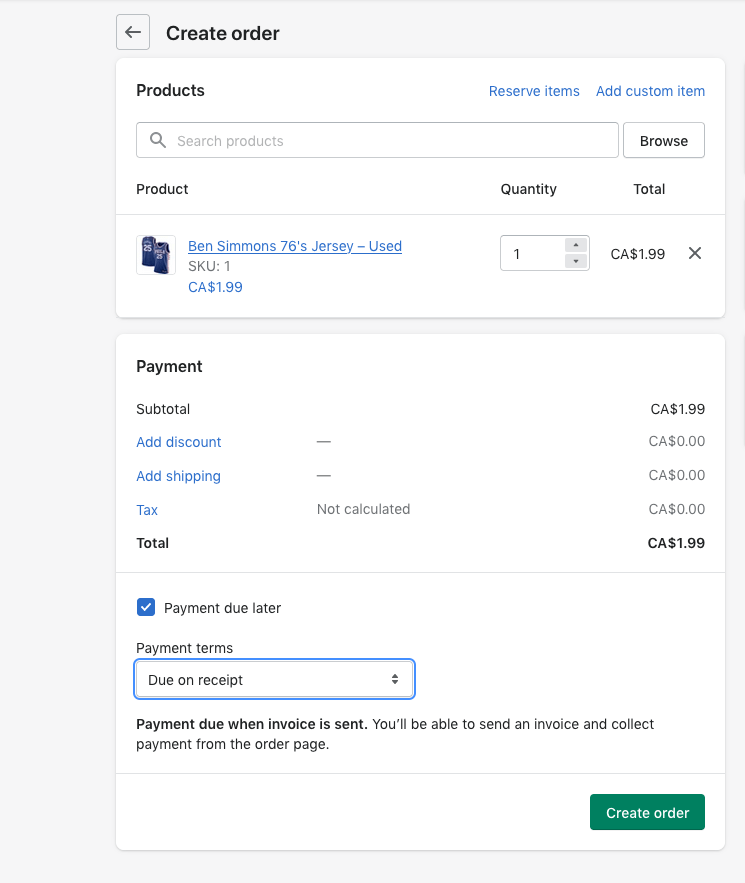
Once the order is created, Shopify will trigger a webhook for the orders/create event.
This will be received in your Hookdeck CLI session as shown below:

Inspect your webhook and webhook logs
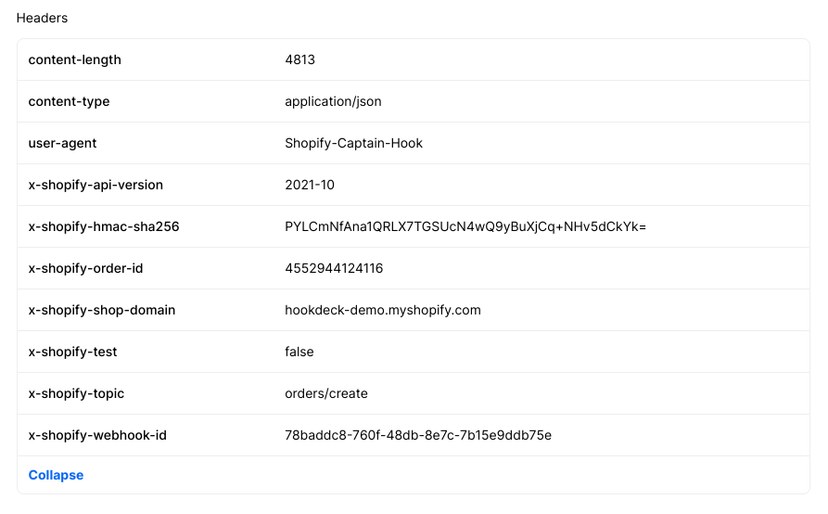
The Hookdeck CLI helps us easily inspect the details contained in a Shopify webhook by providing a URL to an event page that breaks down the webhook data. This URL is the last item on the webhook entry, as shown in the CLI output above. Copy this URL and load it in your browser, and you will see an event page where you can view details like the webhook headers in the Headers section below:
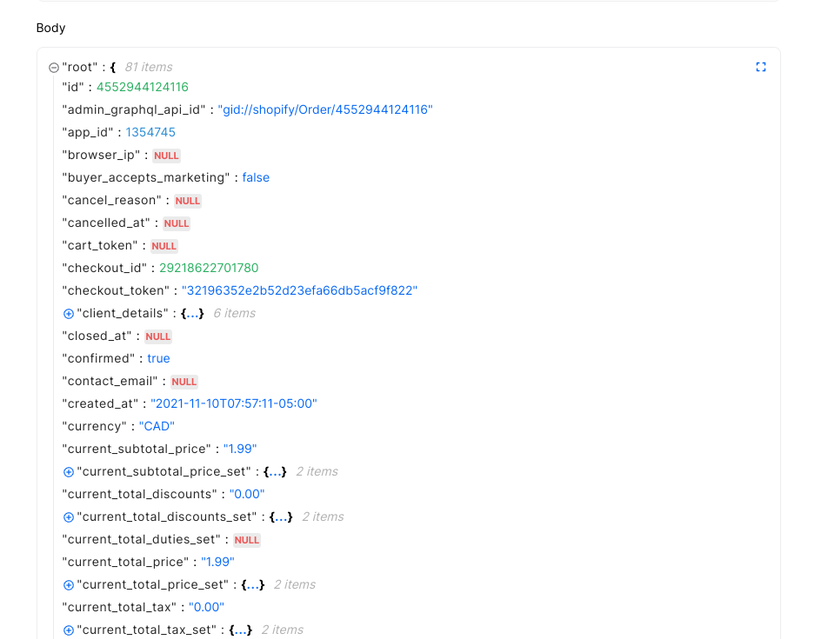
You also have a browsable representation of the webhook payload in the Body section:
Finally, let's check to confirm that the locally running API is indeed logging the webhook payload. Still on your browser, navigate to the /fetch-webhooks-logs endpoint of the locally running API, and you will see a display similar to the one below (ignore the first object):
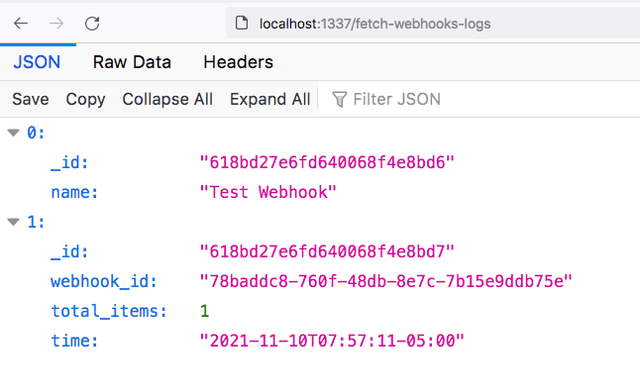
As seen, you have been able to log the webhook ID, the total number of items in your order, and the time the webhook was delivered.
Verify your Shopify webhooks
Shopify sends you an X-Shopify-Hmac-Sha256 header that can be used to verify that the payload contained in the webhook is from Shopify and has not been spoofed or tampered with.
This header contains an HMAC-SHA256 hash of the raw request body, computed using the app's API secret key (client secret) and base64-encoded. Your server must recompute the hash and compare it to verify the payload's authenticity.
To verify your webhook on your external API, you compute the same HMAC-SHA256 hash of the raw webhook body using your API secret key, base64-encode the result, then compare it with the value sent in the X-Shopify-Hmac-Sha256 header using a timing-safe comparison (e.g., crypto.timingSafeEqual()) to prevent timing attacks. If there is a match, then the payload is valid and it originated from Shopify. If not, then it's suspicious and should be ignored.
You can find this verification logic in the server.js file as a commented middleware function validatePayload, shown below:
const sigHeaderName = 'x-shopify-hmac-sha256';
const sigHashAlg = 'sha256';
const secret = process.env.SHOPIFY_CLIENT_SECRET;

.....

/* function validatePayload(req, res, next) {
    if(req.method == "POST"){
        if (!req.rawBody) {
            return next('Request body empty')
        }
        const body = req.rawBody;
        const hmacHeader = req.get(sigHeaderName);
        //Create a hash based on the parsed body
        const hash = crypto
            .createHmac(sigHashAlg, secret)
            .update(body, "utf8", "hex")
            .digest("base64");
        // Use timing-safe comparison to prevent timing attacks
        const hmacValid = crypto.timingSafeEqual(
            Buffer.from(hash, 'base64'),
            Buffer.from(hmacHeader, 'base64')
        );
        if (!hmacValid) {
            return next(`Request body digest did not match ${sigHeaderName}`)
        }
    }
    return next()
}
app.use(validatePayload); */
Always store your API secret key in an environment variable — never hardcode it in your source code. The secret used for HMAC verification is the app's API secret key (client secret), not the API key or Admin API access token.
For more information on security considerations for your webhooks, check out our security checklist.
Mandatory compliance webhooks
If you distribute your app through the Shopify App Store, you must handle three mandatory compliance webhook topics for GDPR/privacy compliance:
customers/data_request— A customer requests their stored data. Your app must provide the relevant data to the store owner.customers/redact— A store owner requests deletion of a customer's data. Your app must delete the data within 30 days.shop/redact— Triggered 48 hours after an app is uninstalled. Your app must delete all stored data for that shop.
These webhooks are configured in your app's shopify.app.toml file under compliance_topics, not via the Admin API.
Conclusion
In this article, you have learned and demonstrated how to perform Shopify webhook operations using the webhook API. For production best practices, see our Shopify webhooks features and best practices guide. Being a programmatic interface, the Shopify API allows you to run automated tasks that can, for example, update and fetch webhooks on the fly. You can perform these tasks directly in your code or within CI/CD pipelines to tailor Shopify webhooks towards your application/infrastructure needs.
Happy coding!
