Cancellations
A cancellation removes all future delivery attempts for an event from the queue. Cancellations can be triggered manually on any event to prevent it from being delivered to its destination.
Cancellations override any automatic retry rule. Cancelled events will not be delivered unless manually retried.
Manually cancel events
Manually canceling events allows you to prevent an event from being delivered to its destination, either because it's currently queued, paused, delayed or has a scheduled next attempt.
Manual cancellations can be triggered individually or in bulk.
Cancel a single event
- Locate the event you wish to cancel and click it to select it.
- In the right-hand panel that appears, click .
{
  "webhook_id": "web_FMKlTwAoGFRu",
  "team_id": "tm_lbhzBKgFOUnB",
  "source_id": "src_qa5626p6y5o79b",
  "destination_id": "des_TU9ioCk5EHUU",
  "event_data_id": "edt_zjQsVjdTqSMI0cNIPPXE",
  "request_id": "req_fpSzYE7G0Op42UkKvFOB",
  "cli_id": null,
  "attempts": 2,
  "status": "SUCCESSFUL",
  "id": "evt_EKbUbpGzNMIdfqnXzA",
  "last_attempt_at": "2026-01-14T13:36:31.820Z",
  "next_attempt_at": null,
  "response_status": 200,
  "error_code": null,
  "successful_at": "2026-01-14T13:36:06.675Z",
  "created_at": "2026-01-14T13:36:06.415Z",
  "updated_at": "2026-01-14T13:36:41.239Z"
}See the cancel event API reference for more details.
Cancel many events
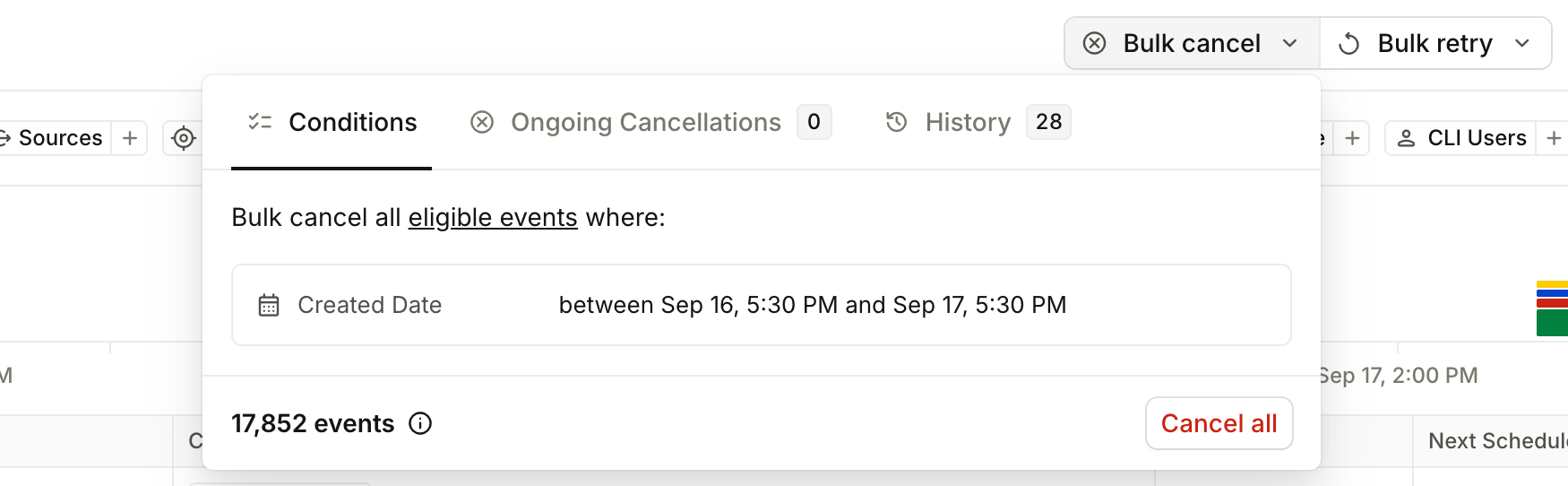
Bulk cancellation is triggered for a set of events based on filters, either through the API or the dashboard. It only affects events that match all of the active filters, including the time range. In the dashboard the bulk cancellation inherits the filters and time range applied to your event list, so widen the time range to cover every event you intend to cancel. Events outside the filter stay in the queue and continue to be delivered.
- Locate a list of events you wish to cancel, either by filtering your event list or opening a custom event view.
- Click .
- Click .
- Optional: If you need to abort a bulk cancellation, click , click the Ongoing tab, select the cancellation you'd like to abort, and click .
{
  "query": {
    "rejection_cause": [
      "UNSUPPORTED_HTTP_METHOD"
    ]
  }
}{
"code": "UNPROCESSABLE_ENTITY",
"status": 422,
"message": "Unprocessable Entity",
"data": {
"message": "The query filter for the batch operations does not include any requests. Please try a different query filter."
}
}See the bulk cancel event API reference for more details.
Hookdeck will now remove all future delivery attempts for the selected events. These events will remain in your event history but will not be delivered to their destinations.
Abort scheduled cancellations
Aborting a scheduled cancellation will stop an ongoing bulk cancellation process and preserve the remaining events in the queue.
- Navigate to your events page and click .
- Click the Ongoing tab to view active bulk cancellations.
- Select the cancellation operation you wish to abort.
- Click .
"<!DOCTYPE html>\n<html lang=\"en\">\n<head>\n<meta charset=\"utf-8\">\n<title>Error</title>\n</head>\n<body>\n<pre>Cannot POST /2025-07-01/bulk/events/cancel/bch_eEdBsDkllCrYu8/cancel</pre>\n</body>\n</html>\n"See the abort bulk cancellation API reference for more details.
Identifying cancelled events
What status a cancelled event ends up with depends on whether it had ever been delivered when you cancelled it:
| Event before cancellation | Resulting status |
|---|---|
| Never delivered (0 attempts) | Cancelled |
| Previously delivered (1 or more attempts) | Reverts to its last known delivery status, such as Failed or Successful |
In both cases the cancellation removes the next scheduled delivery attempt, so the event will not be delivered again unless manually retried. Cancelled events remain in your event history and can be viewed for audit purposes.
Restoring cancelled events
Once an event has been cancelled you can still manually retry a cancelled event if you need to deliver it to its destination afterall.